Running AI models on your own device is one of the biggest tech trends right now.
Tools like Foundry Local, Ollama, LM Studio, and llama.cpp make it possible to run advanced language models directly on your laptop — fully offline and without sending data to the cloud.
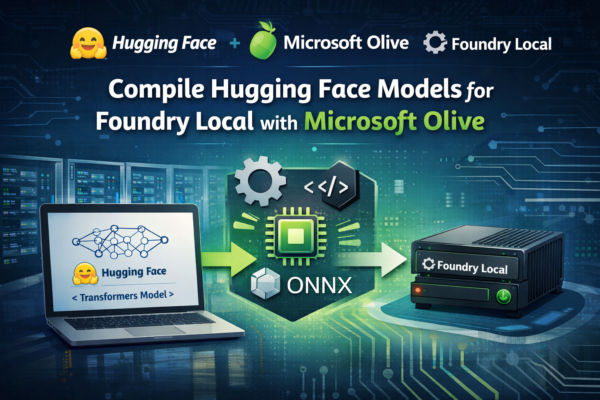
At Microsoft Ignite 2025, Microsoft also introduced major updates to Foundry and Foundry Local, making local inference even easier.
Until now, Ollama and LM Studio have been my main tools for running local models, thanks to their simplicity and great UIs. Lately, I’ve been exploring Foundry Local, and I’m really impressed with its potential — I expect it to become a much bigger part of my workflow going forward.
Why Run an AI Model Locally?
Here’s a practical example from my workflow:
I use Obsidian for note-taking, and my notes often include many screenshots.
Naming each image manually during note-taking is slow and annoying. This results in a folder full of files like:
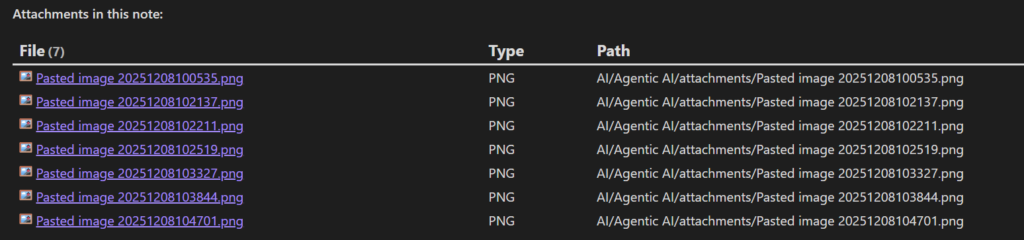
These names provide no hint about what’s inside the image.
Since I already use Tesseract OCR in another part of my workflow, I decided to reuse it here as well. So I created a small script that sends three pieces of information to a local Phi-3.5 model:
- the latest note text
- the file path
- OCR text extracted with Tesseract, which helps the model understand what’s visible inside the screenshot
Using this combined context, the model generates a clean, meaningful, human-readable filename.
Here’s the simple prompt I use:
You are an expert at creating file names from text.
You output ONLY a very short, filename-safe slug from the given context.
OCR Text:

Nearest heading or line:
${(contextObj.heading || "").slice(0, 300)}

Folder path context (ignore generic segments like attachments/images):
${(contextObj.pathCtx || "").slice(0, 300)}

Note context excerpt (unstructured; may include headings/paragraphs):
${(contextObj.noteCtx || "").slice(0, 300)}

Rules:
- Output ONLY 2–4 simple words, lowercase, joined by single hyphens.
- Do NOT include file extensions (png, jpg, pdf), timestamps, or generic words (attachments, pasted, image, screenshot).
- Prefer specific domain terms from OCR; otherwise from heading; otherwise from note context; otherwise from path context.
- No punctuation except hyphens. No quotes. No extra commentary.
Slug:
See the filenames created from local running Phi 3.5 below:
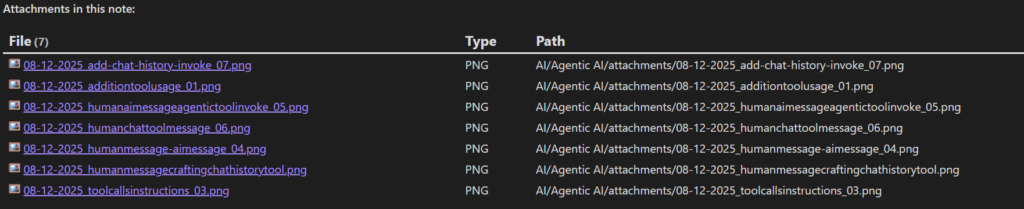
It works surprisingly well — and this is exactly the kind of task where local AI shines: fast, private, automated workflows without relying on the cloud.
How to Choose the Right Model Size for Local Use
When deciding which AI model to run locally, the two most important factors are:
- Available memory (VRAM or RAM)
- Precision / quantization level
From these, you can estimate the maximum model size you can run:
Max model size (in billions of params) ≈ usable_memory / (bytes_per_param × overhead)Where Will Your Model Run? GPU or CPU?
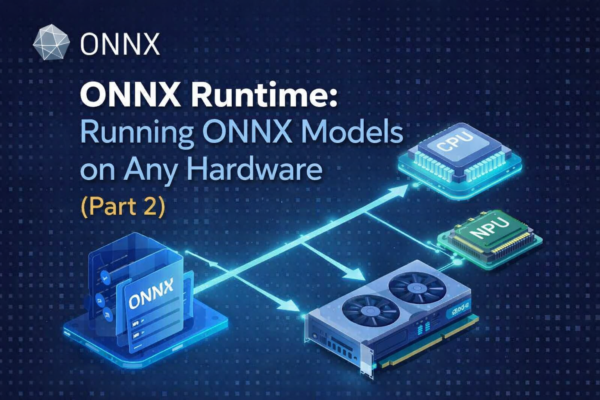
If you have a dedicated GPU, the model will usually try to run in VRAM.If the GPU is too weak or too small, it will fall back to system RAM. NPUs exist on many CPUs, but most LLM tools still don’t fully support them — so we usually ignore NPU for sizing.
Also remember:
Your entire memory isn’t available for the model. The OS and apps need memory too.
Example:
A 16 GB RAM laptop realistically has 10–12 GB free for the model.
Bytes Per Parameter: Understanding Precision / Quantization
Every model has parameters (weights), and each parameter takes up space depending on its precision:
| Precision | Bits | Bytes per parameter |
|---|---|---|
| Float32 (FP32) | 32 | 4 bytes |
| Float16 / BF16 | 16 | 2 bytes |
| Int8 (8-bit) | 8 | 1 byte |
| Int4 (4-bit quant) | 4 | 0.5 bytes |
| Int2 (2-bit quant) | 2 | 0.25 bytes |
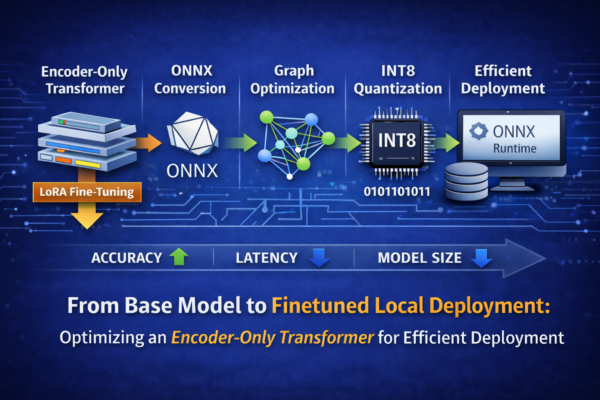
Most local setups use 4-bit or 8-bit quantization because it drastically reduces memory usage.To account for activation buffers, KV cache, and temporary tensors, we add an overhead factor (usually 1.3–1.5).
Simple Formula for Maximum Model Size
Let:
- M = usable memory in GB
- B = bytes per parameter
- O = overhead factor (e.g. 1.3)
1. Convert memory to bytes
M_bytes = M × 1,000,000,0002. Compute max parameters
max_params = M_bytes / (B × O)3. Convert to billions of parameters
max_params / 1,000,000,000Example: My Machine
- Total RAM: 64 GB
- Reserve for OS/apps: 20 GB
- Available for model: 44 GB
- Precision: 4-bit (0.5 bytes)
- Overhead: 1.3
M_bytes = 44 × 1,000,000,000 = 44,000,000,000
Effective bytes per parameter = 0.5 × 1.3 = 0.65
max_params = 44,000,000,000 / 0.65 ≈ 67.7B
In theory, I can load a ~67B parameter model.
In practice, I prefer models under 16B because they run noticeably faster and feel more responsive on my system.
What Exactly Is 4-Bit Quantization?
Models are originally trained at high precision (usually FP32 or BF16).
Quantization compresses these parameters to a lower precision format.
4-bit quantization means:
- Each weight uses only 4 bits instead of 32
- Model size drops by up to 8×
- Inference becomes much faster
- Some accuracy is lost — but usually not enough to matter for everyday tasks
Quantization does not change:
- the number of parameters
- the architecture
- the model’s general capabilities
It only changes how efficiently the model can run on your machine.
Conclusion
Running AI models locally is becoming easier, faster, and more privacy-friendly.
Tools like Foundry Local, Ollama, and LM Studio let anyone experiment with powerful models offline.
To choose the right local model, focus on:
- your available RAM/VRAM
- the quantization level
- real-world performance, not theoretical maximums
And once you start automating your workflows — like I did with automatic screenshot naming — you’ll quickly see the benefits of locally running AI.
Resources Mentioned
Here are the tools and references mentioned throughout the post:
- Learn more about note-taking with obsidian: https://obsidian.md
- Microsoft’s Phi models: https://azure.microsoft.com/en-us/products/phi
- Run AI locally with Foundry Local: https://learn.microsoft.com/en-us/azure/ai-foundry/foundry-local/what-is-foundry-local?view=foundry-classic
- Tesseract: Open-source OCR for image-to-text: https://github.com/tesseract-ocr/tesseract
- Simple local model runner (Ollama): https://ollama.com
- Desktop LLM interface (LM Studio): https://lmstudio.ai/