With modern developer machines increasingly equipped with dedicated GPUs or NPUs (Neural Processing Units), running advanced AI models locally is no longer experimental — it is practical.
Microsoft recently introduced Azure AI Foundry Local, a public preview CLI designed to enable on-device AI inferencing. Combined with Olive, Microsoft’s hardware-aware model optimization toolkit, we now have a streamlined and production-aligned workflow for preparing, optimizing, and deploying large language models locally.
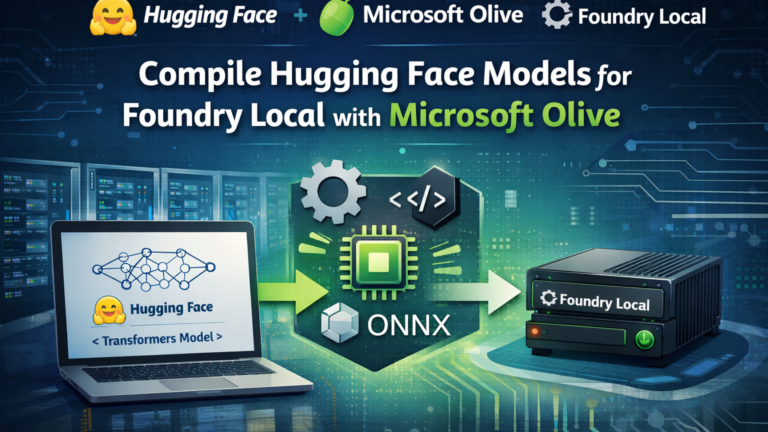
In this article, I will demonstrate how to optimize and deploy Phi-3-mini-4k-instruct (often referred to as Phi-3.5 Mini) for local inference using Olive and Foundry Local.
Why Hardware-Aware Optimization Matters
Hardware-aware model optimization ensures that machine learning models are tuned specifically for the target compute environment — CPU, GPU, or NPU — while respecting constraints such as:
- Latency
- Throughput
- Memory footprint
- Accuracy retention
However, this is non-trivial:
- Each hardware vendor exposes different toolchains.
- Aggressive compression (e.g., INT4 quantization) can degrade model quality.
- Hardware ecosystems evolve rapidly, requiring adaptable optimization workflows.
This is precisely where Olive provides value.
Olive: Hardware-Aware Optimization for ONNX Runtime
Olive is Microsoft’s end-to-end model optimization framework designed to work seamlessly with ONNX Runtime. It composes multiple optimization techniques — compression, graph transformation, quantization, and compilation — into an automated workflow.
Instead of manually experimenting with dozens of techniques, Olive uses search strategies and evaluation passes to generate the most efficient model for a given hardware target.
The Olive Optimization Workflow
Olive operates through a structured pipeline of optimization passes, including:
- Graph capture
- Graph-level optimization
- Transformer-specific optimizations
- Hardware-dependent tuning
- Quantization (GPTQ, AWQ, etc.)
- Runtime artifact generation
Each pass exposes tunable parameters. Olive evaluates model quality and performance and selects the best configuration based on defined constraints.
Step 1 — Environment Setup
For this walkthrough, I recommend Python 3.10. Although newer versions exist, Python 3.10 remains the most stable in practice for Olive-based optimization workflows.
py -3.10 -m venv .venv_phi3
cd .venv_phi3
python -m pip install --upgrade pip
pip install -r requirements.txt
#requirements.txt
transformers==5.1.0
onnx==1.20.1
onnx-ir==0.1.15
onnxruntime==1.23.2
onnxruntime-genai==0.11.4
onnxscript==0.6.0
optimum==2.1.0
olive==0.2.11
olive-ai==0.11.0
torch==2.10.0
torchmetrics==1.8.2
tabulate==0.9.0
tokenizers==0.22.2
requests==2.32.5
urllib3==2.6.3Step 2 — Authenticate and Download the Model
We will use the instruct-tuned version of Microsoft’s 4B parameter Phi model:Phi-3-mini-4k-instruct
Begin by authenticating with your Hugging Face account:
hf auth loginThen download the model locally before proceeding. Although Olive can retrieve the model directly from Hugging Face during execution, explicitly downloading it in advance is recommended to ensure reproducibility, version control, and greater transparency within the optimization workflow
hf download microsoft/Phi-3-mini-4k-instruct --local-dir hf-models/Phi-3-mini-4k-instructIn the following section, I outline three equivalent approaches for preparing a Hugging Face model for deployment with Microsoft Foundry Local:
- Automatic optimization using
olive auto-opt - Configuration-driven execution using
olive run --config - Step-by-step execution using dedicated CLI commands (
olive capture-onnx-graph,olive optimize,olive quantize)
All three approaches ultimately produce the same result: an optimized ONNX Runtime artifact that can be deployed with Foundry Local.
In production-oriented scenarios, however, I strongly favor the configuration-driven workflow using olive run --config (see the section Alternative Ways to Achieve the Same Optimization Workflow below). While olive auto-opt is the most convenient entry point, it does not work reliably across all models, configurations, and library combinations. The configuration-based approach offers greater transparency, reproducibility, and fine-grained control over optimization passes, hardware targets, and quantization parameters—making it significantly more robust than relying exclusively on the higher-level auto-opt abstraction.
Step 3 — Automatic Optimization with olive auto-opt
The fastest way to optimize a Hugging Face model is:
olive auto-opt
  --model_name_or_path hf-models/Phi-3-mini-4k-instruct # you can also use the model direct from HF with microsoft/Phi-3-mini-4k-instruct
  --trust_remote_code
  --output_path models/phi3-mini-ort
  --device cpu
  --provider CPUExecutionProvider
  --use_ort_genai
  --precision int4
  --log_level 1
This single command performs:
- ONNX graph capture
- Transformer graph optimizations
- Hardware-aware graph tuning
- GPTQ-based INT4 quantization
- Conversion to ORT runtime format
If targeting GPU:
--device gpu
--provider CUDAExecutionProvider
Review the output generated by the olive auto-opt command:
+------------+-------------------+------------------------------+----------------+-----------+
| model_id   | parent_model_id   | from_pass                    |   duration_sec | metrics   |
+============+===================+==============================+================+===========+
| 479b58b6   |                   |                              |                |           |
+------------+-------------------+------------------------------+----------------+-----------+
| 15d39b94   | 479b58b6          | onnxconversion               |      0.0249999 |           |
+------------+-------------------+------------------------------+----------------+-----------+
| acaa1d8e   | 15d39b94          | modelbuilder                 |      0.0715292 |           |
+------------+-------------------+------------------------------+----------------+-----------+
| 2884cb1e   | acaa1d8e          | onnxpeepholeoptimizer        |      0.0270009 |           |
+------------+-------------------+------------------------------+----------------+-----------+
| 52f45d02   | 2884cb1e          | orttransformersoptimization  |      0.0275121 |           |
+------------+-------------------+------------------------------+----------------+-----------+
| b8019b2b   | 52f45d02          | onnxblockwisertnquantization |     37.6093    |           |
+------------+-------------------+------------------------------+----------------+-----------+
| ed7ce3c3   | b8019b2b          | extractadapters              |      0.218572  |           |
+------------+-------------------+------------------------------+----------------+-----------+
Below is an overview of the generated model artifacts. The directory contains the optimized ONNX model, runtime configuration files, tokenizer assets, and supporting Python modules required for successful deployment and execution with Foundry Local.
📁 phi3-mini-ort
├── 📄 chat_template.jinja
├── 📄 config.json
├── 🐍 configuration_phi3.py
├── 📄 genai_config.json
├── 📄 generation_config.json
├── 📦 model.onnx
├── 📦 model.onnx.data
├── 🐍 modeling_phi3.py
├── 📄 tokenizer.json
└── 📄 tokenizer_config.json
Note: CUDA workflows are generally more stable under WSL environments.
Alternative Ways to Achieve the Same Optimization Workflow
In practice, the automatic optimization workflow does not succeed consistently across all models and environments. Library version mismatches, execution provider constraints, and CUDA dependency alignment can introduce instability. From hands-on experience, CUDA-based optimization tends to execute more reliably within WSL2—particularly when GPU drivers and runtime libraries are version-aligned.
For this reason, I frequently prefer using olive run with an explicit configuration file rather than relying solely on auto-opt. While auto-opt is convenient, it abstracts the optimization pipeline and can fail silently or provide limited transparency when troubleshooting complex models. The configuration-driven approach offers deterministic control over:
- Optimization passes
- Quantization strategy (e.g., GPTQ parameters)
- Execution providers
- Target hardware definitions
- Output artifact handling
To follow this approach, define a configuration file that specifies your model, target system, and optimization passes, and then create pass_config.json with following content :
{
  "input_model": {
    "type": "HfModel",
    "model_path": "C:\\onnx_olv\\phi3.5\\hf-models\\Phi-3-mini-4k-instruct"
  },
  "systems": {
    "local_system": {
      "type": "LocalSystem",
      "accelerators": [
        { "execution_providers": ["CPUExecutionProvider"] }
      ]
    }
  },
  "passes": {
    "quant": {
      "type": "gptq",
      "bits": 4,
      "sym": false,
      "group_size": 32,
      "lm_head": true
    },
    "modbuild": {
      "type": "ModelBuilder",
      "precision": "int4"
    }
  },
  "target": "local_system",
  "output_dir": "models/phi3-mini-ort"
}
and execute it:
olive run --config ./pass_config.jsonAnother alternative approach is to invoke the individual Olive CLI commands directly.
If you prefer greater control over each optimization stage rather than relying on the auto-opt abstraction, you can execute the workflow step by step. While olive auto-opt bundles ONNX export, graph optimization, and quantization into a single command, decomposing the process into discrete CLI operations allows you to validate outputs at each stage and fine-tune parameters as needed.
1. Capture ONNX Graph
Export the Hugging Face model into an ONNX graph suitable for ONNX Runtime GenAI:
olive capture-onnx-graph \
  --model_name_or_path models/phi3-mini-int4 \
  --task text-generation \
  --use_ort_genai \
  --trust_remote_code \
  --output_path models/phi3-mini-onnx \
  --device cpu \
  --provider CPUExecutionProvider
2. Optimize Graph
Apply ONNX graph optimizations (including transformer-specific optimizations when applicable):
olive run \
  --input_model models/phi3-mini-onnx \
  --output_path models/phi3-mini-instruct \
  --device cpu \
  --provider CPUExecutionProvider
3. Quantize
Quantize the optimized model to INT4 using GPTQ (or another supported algorithm):
olive quantize \
  --model_name_or_path models/phi-mini-instruct \
  --algorithm gptq \
  --precision int4 \
  --output_path models/phi3-mini-ort \
  --device cpu \
  --provider CPUExecutionProvider
Olive supports multiple quantization algorithms, some of which require GPU acceleration, as shown below.
| Implementation | Description | Model format(s) | Algorithm | GPU required ? |
|---|---|---|---|---|
| AWQ | Activation-aware Weight Quantization (AWQ) creates 4-bit quantized models and it speeds up models by 3x and reducesmemory requirements by 3x compared to FP16. | PyTorch ONNX | Awq | ✅ |
| GPTQ | Generative Pre-trained Transformer Quantization (GPTQ) is a one-shot weight quantization method. You can quantize your favorite language model to 8, 4, 3 or even 2 bits. | PyTorch ONNX | GptQ | ✅ |
| Quarot | QuaRot enables full 4-bit quantization of LLMs, including weights, activations, and KV cachet by using Hadamard rotations to remove outliers. | PyTorch | quarot | ❌ |
| Spinquant | SpinQuant is a quantization method that learns rotation matrices to eliminate outliers in weights and activations, improving low-bit quantization without altering model architecture. | PyTorch | spinquant | ❌ |
| BitsAndBytes | Is a MatMul with weight quantized with N bits (e.g., 2,3,4,5,6,7). | ONNX | RTN | ❌ |
| ORT | Static and dynamic quantizations. | ONNX | RTN | ❌ |
| INC | Intel@ Neural Compressor model compression tool. | ONNX | GPTQ | ❌ |
| NVMO | NVIDIA TensorRT Model Optimizer is a library comprising state-of-the-art model optimization techniques including quantization, sparsity, distillation, and pruning to compress models. | ONNX | AWQ | ❌ |
| Olive | Olive implemented Half-Quadratic Quantization for MatMul to 4 bits. | ONNX | HQQ | ❌ |
Below is also an overview of the available Olive CLI commands:
| Command | Description |
|---|---|
| auto-opt | Automatically optimize a PyTorch model into ONNX with optional quantization. |
| finetune | Finetune a model on a dataset using techniques like LoRA and QLoRA. |
| capture-onnx-graph | Capture the ONNX graph from a Hugging Face or PyTorch model. |
| optimize | optimize the ONNX models using various optimization passes |
| quantize | Quantize a PyTorch or ONNX model using algorithms such as AWQ,QuaRoT, GPTQ, RTN and more. |
| extract-adapters | Extract LoRAs from PyTorch model to separate files |
| generate-adapter | Generate ONNX model with adapters as inputs. Only accepts ONNX models. |
| convert-adapters | Converts lora adapter weights to a file that will be consumed by ONNX models generated by Olive ExtractedAdapters pass |
| run | runs the olive workflow defined in config |
Step 4 — Deployment with Foundry Local
The installation and base configuration of Microsoft Foundry Local are covered in detail in my dedicated blog post here . In this section, we focus specifically on preparing the optimized model artifacts for deployment.
Before deployment, make the following configuration adjustments to ensure consistent and deterministic inference behavior:
1. In genai_config.json update the following keys:
"do_sample": false,
"temperature": 0.5,
"top_k": 50,
"top_p": 1.0
2. In tokenizer_config.json, set the tokenizer implementation explicitly to ensure compatibility with ONNX Runtime GenAI:
"tokenizer_class": "PreTrainedTokenizerFast"You can now configure Microsoft Foundry Local to register and serve the newly generated model.
First, locate the Foundry cache directory:This cache folder is the designated location where Microsoft Foundry Local scans for and registers locally available models for deployment.
foundry cache location
foundry cache list
Next, create a dedicated directory that will contain the optimized model artifacts:
$modelPath = Join-Path $HOME "MyModel"
mkdir $modelPath
Move the entire phi3-mini-ort directory (including all artifacts) into this location and set it as local cache location:
foundry cache cd $modelPathRestart occurs automatically.
Restarting service...
🔴 Service is stopped.
🟢 Service is Started on http://127.0.0.1:52486/, PID 33880!
Verify that the model has been successfully registered and is recognized by Foundry Local:
foundry cache listYou should now see your newly registered model listed in the output, confirming that it has been successfully recognized by Foundry Local.
Models cached on device:
   Alias                                             Model ID
💾 phi3-mini-ort                                phi3-mini-ort
Once the Foundry Local service has successfully started, you can launch the optimized model using:
foundry run phi3-mini-ort 🟢 Service is Started on http://127.0.0.1:64726/, PID 11912!
🕖 Downloading complete!...
Successfully downloaded and registered the following EPs: OpenVINOExecutionProvider, NvTensorRTRTXExecutionProvider, CUDAExecutionProvider.
Valid EPs: CPUExecutionProvider, WebGpuExecutionProvider, OpenVINOExecutionProvider, NvTensorRTRTXExecutionProvider, CUDAExecutionProvider
🕘 Loading model...
🟢 Model phi3.5-mini-ort loaded successfully
Interactive Chat. Enter /? or /help for help.
Press Ctrl+C to cancel generation. Type /exit to leave the chat.
Interactive mode, please enter your prompt
> and now Inference Time:
> What is Microsoft Foundry?
🧠 Thinking...
🤖  Microsoft Foundry is a platform developed by Microsoft that provides a suite of tools and services designed to support the digital transformation of organizations. It aims to facilitate the creation, deployment, and management of AI-powered applications and services. Foundry offers a collaborative environment for developers, data scientists, and engineers to build and scale AI models, automate tasks, and integrate AI capabilities into existing systems.
The model responds interactively using ONNX Runtime GenAI.
What This Workflow Delivers
By combining Olive and Azure AI Foundry Local, you achieve:
- Automated, constraint-aware model optimization
- GPTQ-based INT4 compression for reduced memory footprint
- ORT runtime artifact generation
- Local inference without cloud dependency
- Support for advanced deployment patterns such as Multi-LoRA
Final Thoughts
Local AI inference is no longer a research experiment — it is a production capability.
Using Microsoft’s Olive CLI, you can transform a 7GB transformer model into an optimized, hardware-aware ONNX Runtime artifact ready for deployment on commodity hardware. Combined with Foundry Local, this creates a reproducible, enterprise-aligned workflow for secure, offline AI deployments.
As AI hardware continues to evolve — from CPUs to GPUs to dedicated NPUs — hardware-aware optimization will increasingly become a core competency for AI engineers.
And with Olive, Microsoft has provided a robust foundation for that future.