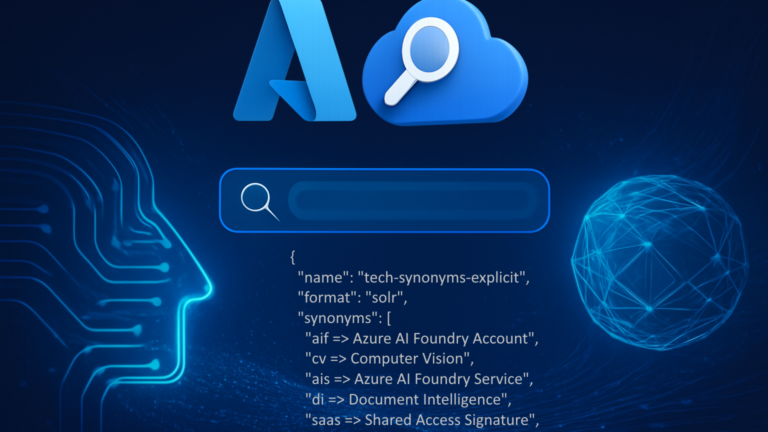
When teams first get started with Azure AI Search, everything feels incredibly intuitive.
You create an index, push some documents, run a query, and—boom—you get results.
Simple. Or at least it appears that way.
But very quickly, anyone building real search experiences discovers that users never search the way you expect them to.
They type shortcuts.
They use internal jargon.
They mistype.
They use outdated product names.
Or they just describe something differently from how it’s written in your content.
And that’s exactly where synonyms come into play.
Most developers know that Azure AI Search supports synonym maps.
Some even create a basic one with a few mappings.
But very few truly understand how powerful synonyms are—and how dramatically they can improve precision, recall, and relevance ranking inside an enterprise search solution.
I’ve seen this pattern repeatedly in projects, design workshops, and customer architectures.
Organizations invest heavily in semantic ranking, vector embeddings, hybrid search, and LLM reasoning…
yet completely overlook synonym logic, which often delivers the biggest improvement for the least amount of effort.
Honestly, early in my own journey with Azure AI Search, I was no different.
I knew synonyms existed, but they felt like an optional add-on—something “nice to have” but not essential.
It wasn’t until I worked on a large RAG solution where abbreviations and internal terminology were everywhere that I realized just how mission-critical synonym maps really are.
Recently, during a tuning session for a search-driven RAG pipeline, a colleague asked why a certain query returned inconsistent results, even though the content seemed relevant.
The answer?
A missing synonym.
A simple one.
But in enterprise search, the small details create the big differences.
That conversation sparked the idea for this article.
If so many teams still struggle with relevance gaps caused by terminology mismatches, it’s worth demystifying synonyms—especially when your search layer sits at the heart of AI applications.
Why Synonyms Matter in Enterprise Search
In modern search systems—especially those powering Retrieval-Augmented Generation (RAG)—synonyms aren’t optional.
They’re foundational.
Synonym maps help solve challenges like:
- Teams using abbreviations while documentation uses full names
- Internal tools having nicknames that never appear in formal content
- Product names evolving faster than your documentation
- Mergers introducing entirely new vocabularies
- Users searching with natural language instead of technical terms
Without synonyms, your search index becomes brittle.
It matches only what’s written—not what users mean.
And in RAG scenarios powered by Azure AI Search, that creates major issues:
- Missing or incomplete retrieval results
- Reduced grounding quality
- Increased hallucination risk
- Lowered relevance scores
- Poor user trust in the system
Synonyms fix all of this—quietly, elegantly, and effectively. And they are extremely efficient.
How Azure AI Search Applies Synonyms
Behind the scenes, Azure AI Search expands queries using synonym maps before executing them.
This means, a query like:
uican internally become:
ui OR "user interface"depending on the rule definition.
This increases recall without requiring your users to know internal terminology.
But more importantly, it boosts relevance ranking by ensuring that related documents aren’t accidentally excluded just because the wording didn’t match.
The magic is in the simplicity:
- Synonyms expand user queries
- Expanded queries retrieve more relevant documents
- Ranking algorithms get richer signals
- RAG pipelines get higher-quality grounding
- LLM responses become more accurate and reliable
All from a few lines of synonym definitions.
How to Create and Use Synonym Maps in Azure AI Search
Understanding why synonyms matter is one thing.
Knowing how to build and use them correctly is another.
And while Azure AI Search makes synonym logic extremely powerful, the creation process is fully programmatic. Azure AI Search does not support creating or assigning synonym maps through the portal.You don’t have any option to create ,delete, update or see any existing or assigned syonym map on azure there
If you want to automate synonym map management—especially in enterprise RAG or search solutions—you must do it via REST or SDK.
The walkthrough below shows how to create a synonym map, create an index, assign synonyms, and verify the configuration.
1. Creating a Synonym Map
A synonym map is a standalone resource on your search service.
It contains:
- A name
- A format (always
"solr") - A list of synonym rules
Azure supports two rule styles:
Equivalency rules (A↔ B ↔ C)
All terms are considered interchangeable:
ui, "user interface", frontendExplicit mappings (A → B)
The left side rewrites to the right side only (not vice-versa):
ui => "user interface"A search for ui becomes user interface, but user interface does not expand back.
Azure immediately makes your synonym map available for query-time expansion—no reindexing required.
Limits to keep in mind:
- Free tier: maximum 3 synonym maps up to 5,000 rules
- Standard/SKU tiers: up to 20,000 rules
- Maximum 20 terms per rule
See for limits here
Example: Creating a Synonym Map
The code below defines a synonym map using equivalency rules.
Each line groups terms like ui, user interface, and frontend so Azure treats them as interchangeable.
synonym_map_name = "tech-synonyms-equivalency"
synonyms = [
     'ui, "user interface", frontend',
     'ux, "user experience"',
     'aks, "azure kubernetes service", kubernetes',
     'iaas, "infrastructure as a service"',
     'api, "application programming interface"',
     'sql, "structured query language"',
     'vm, "virtual machine"',
     'gpu, "graphics processing unit"',
     'cpu, "central processing unit"',
     "repo, repository",
     'ide, "integrated development environment"',
     'devops, "development operations"',
]

_index_client = SearchIndexClient(
     endpoint=_search_service_endpoint,
     credential=_credential,
)
synonym_map = SynonymMap(
         name=name,
         format="solr",
         synonyms=synonyms,
)
self._index_client.create_or_update_synonym_map(synonym_map)
This uploads the synonym map to your Azure Search service so it can be attached to fields.
2. Creating a Demo Index
To use a synonym map, your index must contain eligible fields.
Synonym maps only work on:
Edm.Stringfields- Fields marked as
"searchable": true - Non-key fields
- One synonym map per field
The following code creates a small index that includes a mix of searchable and non-searchable fields.
The goal is to demonstrate where synonym maps can be applied later.
    def create_index(self, index_name: str):
        """Create or update a demo index with a few fields."""
        fields = [
            # Key field (must be a SimpleField with key=True)
            SimpleField(
                name="id",
                type=SearchFieldDataType.String,
                key=True,
                filterable=False,
                sortable=False,
                facetable=False,
            ),
            # Title: searchable, filterable, sortable
            SearchableField(
                name="title",
                type=SearchFieldDataType.String,
                sortable=True,
                filterable=True,
                facetable=False,
            ),
            # Content: main text, searchable, synonym-enabled later
            SearchableField(
                name="content",
                type=SearchFieldDataType.String,
                sortable=False,
                filterable=False,
                facetable=False,
            ),
            # Category: simple filterable field
            SimpleField(
                name="category",
                type=SearchFieldDataType.String,
                filterable=True,
                sortable=True,
                facetable=True,
            ),
            # Tags: a collection of strings, searchable + facetable
            SearchableField(
                name="tags",
                collection=True,
                type=SearchFieldDataType.String,
                filterable=True,
                facetable=True,
            ),
            # Created date: useful for sorting/filtering
            SimpleField(
                name="created_at",
                type=SearchFieldDataType.DateTimeOffset,
                filterable=True,
                sortable=True,
                facetable=False,
            ),
        ]

        index = SearchIndex(
            name=index_name,
            fields=fields,
        )

        self._index_client.create_or_update_index(index)
        print(f"✅ Index '{index_name}' created or updated.")

    def list_fields_with_synonym_maps(self, index_name: str):
        """Print all fields that have synonym maps assigned."""
        index = self._index_client.get_index(index_name)

        print(f"\nSynonym map assignments in index '{index_name}':\n")
        found_any = False

        for field in index.fields:
            synonym_maps = getattr(field, "synonym_map_names", None)
            if synonym_maps:
                found_any = True
                print(f"🟦 Field: {field.name}")
                print(f"     Synonym maps: {synonym_maps}")

        if not found_any:
            print("⚠️ No fields in this index have synonym maps assigned.")
This index doesn’t assign synonyms yet—
it simply establishes the structure so synonyms can be attached afterward.
3. Assigning Synonym Maps to Eligible Fields
Assigning a synonym map is where the magic happens.
Once the synonym map exists and your index is created, you can attach the synonym map to any eligible field. . A field must:
- Be searchable
- Be of type Edm.String
- Not be the key field
- Not already have a synonym map assigned (Azure allows only one)
The method below automatically assigns the synonym map to all valid fields in the index in one pass:
def assign_synonym_map_to_all_fields(self, index_name: str, synonym_map_name: str):
        """
        Assign a synonym map to all eligible fields in an existing index.

        Rules:
        - Only searchable fields
        - Only string (Edm.String) fields
        - Not the key field
        - Must not already have a synonym map
        """
        index = self._index_client.get_index(index_name)
        updated = False

        for field in index.fields:
            # 1) Must be searchable
            if not getattr(field, "searchable", False):
                print(
                    f"Field '{field.name}' is not searchable. "
                    "Synonym maps only work on searchable string fields."
                )
                continue

            # 2) Must be string
            if field.type != SearchFieldDataType.String:
                print(
                    f"Field '{field.name}' is not a string field. "
                    "Synonym maps only work on Edm.String types."
                )
                continue

            # 3) Must not be the key field
            if getattr(field, "key", False):
                print(
                    f"Field '{field.name}' is the key field. "
                    "A synonym map cannot be assigned to a key field."
                )
                continue

            # 4) Must not already have a synonym map
            existing = getattr(field, "synonym_map_names", None)
            if existing:
                print(
                    f"Field '{field.name}' already has a synonym map: {existing}. "
                    "Remove it before assigning a new one."
                )
                continue

            # Assign map
            field.synonym_map_names = [synonym_map_name]
            updated = True
            print(
                f"✅ Assigned synonym map '{synonym_map_name}' to field '{field.name}' "
                f"in index '{index_name}'."
            )

        if updated:
            # Single update for the whole index (more efficient than per-field)
            self._index_client.create_or_update_index(index)
        else:
            print("No fields were updated. Either no eligible fields or all already had a synonym map.")
This ensures synonyms are added only to fields that support them and updates the index efficiently.
4. Checking Which Fields Have Synonym Maps Assigned
Because the Azure Portal does not show synonym assignments, the only way to verify them is programmatically.
The method below prints all fields that currently have a synonym map:
    def list_fields_with_synonym_maps(self, index_name: str):
        """Print all fields that have synonym maps assigned."""
        index = self._index_client.get_index(index_name)

        print(f"\nSynonym map assignments in index '{index_name}':\n")
        found_any = False

        for field in index.fields:
            synonym_maps = getattr(field, "synonym_map_names", None)
            if synonym_maps:
                found_any = True
                print(f"🟦 Field: {field.name}")
                print(f"     Synonym maps: {synonym_maps}")

        if not found_any:
            print("⚠️ No fields in this index have synonym maps assigned.")
This is extremely helpful for validating your configuration and debugging relevance issues.
What Happens After Synonyms Are Assigned
Once a synonym map is attached to a field, Azure AI Search begins applying the synonym rules immediately during query execution.
No index rebuild or reindexing is required.
This is one of the biggest advantages of synonym maps—they enhance search behavior without touching stored documents.
Updating & Managing Synonym Maps
Azure allows you to update a synonym map at any time, and the updated rules take effect instantly.
However, there are a few important constraints to understand:
- Updating a synonym map replaces the entire map
There is no partial update capability.
Even a one-line change requires you to upload the full synonym map again. - If a synonym map is deleted while still assigned to a field, queries will fail with a 404
Azure cannot resolve the missing resource, so keep map lifecycle in mind.
This makes proper management and naming conventions essential in production environments.
What Synonyms Actually Affect
Synonym expansion applies to several types of search operations in Azure:
Synonyms apply to:
- Full-text search queries
- Semantic search
- Hybrid queries (keyword + vector)
- RAG pipelines that use Azure AI Search as a retriever
Synonyms do not apply to:
- Filters
- Facets
- Autocomplete or suggestion queries
- Wildcard, regex, or fuzzy queries (unless manually combined)
If you need both synonym expansion and wildcard matching, you can combine queries manually using OR:
"ui" | "ui*"This ensures synonyms expand while still allowing prefix matching.
Why You Should Start Small
If you’re adding synonyms to an existing index with live traffic, it’s best to begin with a small synonym dictionary and run a few queries to observe the impact.
Synonyms influence:
- scoring behavior
- hit highlighting
- semantic ranking
- hybrid retrieval results
- grounding quality in RAG scenarios
Starting small helps you avoid unintentionally broadening search results or overpowering ranking signals.
Final Thoughts
Synonym maps are one of the most underrated features in Azure AI Search.
They require only minutes to implement but can dramatically improve query relevance, retrieval quality, and grounding—especially in RAG-driven architectures.
If you’re building enterprise search or AI systems, don’t treat synonyms as a “nice to have.”
Treat them as essential.
In many cases, synonym logic delivers more impact than complex vector pipelines, expensive embeddings, or semantic tuning—and for a fraction of the cost and complexity.
You can find the complete working code example—including synonym map creation, index setup, assignment logic, and validation utilities—on GitHub:
👉 https://github.com/charisal/azure-ai-search-synonym-map-sample